Master Shopify Themes Development: A Step-by-Step Guide to Create and Publish a Killer Shopify Theme!
You must know by now that Shopify is huge! After all, Shopify has generated over $590 billion in sales during its 17 years of operation, and its total revenue w
You must know by now that Shopify is huge! After all, Shopify has generated over $590 billion in sales during its 17 years of operation, and its total revenue w
You must know by now that Shopify is huge! After all, Shopify has generated over $590 billion in sales during its 17 years of operation, and its total revenue was $3.9 billion in the first three quarters of 2022. With shopify themes development, personalizing content too has become far easier.
Watch this video to know why you should choose Shopify:
In this blog, we'll give you a glimpse of:
- How merchants build Shopify themes development
- The steps to creating & publishing a Shopify theme from scratch
Wondering How merchants utilize Shopify themes?
When developing Shopify stores and creating engaging customer experiences, our merchants rely on Shopify themes development as the building blocks for their online stores. These customizable templates, downloaded by thousands of business owners each month, are a key component of our partner community.
Our expert Shopify developers specialize in Shopify themes development, utilizing a collection of building components, supporting materials, and template files to create modular and scalable themes. We have in-depth knowledge of the Liquid templating language, the foundation of Shopify themes, which allows us to seamlessly load dynamic content on storefronts
Steps to Creating & Publishing a Shopify theme
To create and publish a Shopify theme for your Shopify store design, here is what you need for Shopify themes development.
- Node.js 14.17.0 or higher
- Ruby+Devkit 3.0, installed using RubyInstaller for Windows
- Git
Step 1: Install Shopify CLI
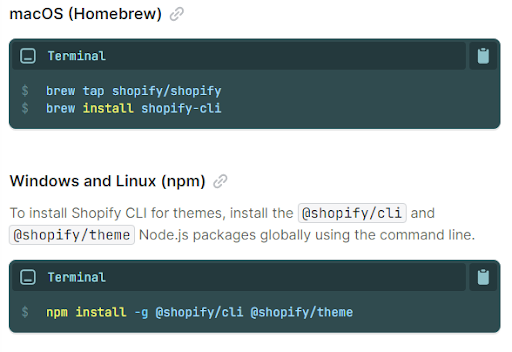
Shopify CLI is a command-line tool for creating a Shopify theme from scratch . It allows you to preview, test, and share theme changes while developing locally. To get started with Shopify CLI and begin your Shopify themes development journey, simply follow the instructions below to install Shopify CLI on macOS and Windows.
Step 2: Initialize a new theme using Dawn
The second step in Shopify themes development is to initialize a new theme using Dawn
Clone the Dawn Git repository to your local machine using Shopify theme init.
Dawn is Shopify's default theme, designed for performance, flexibility, and usability. Dawn can be used as a starting point for creating a theme. Dawn, as Shopify's default theme, offers a solid foundation for your Shopify themes development project
- Enter the following command:

- You're then prompted to enter a name for your Shopify themes development, such as my-theme. The theme is cloned into a folder with the same name.
- After the theme is cloned, navigate to the folder:

Step 3: Start a local development server
The next step on how to create Shopify theme involves starting a local development server for Shopify themes development. After you've initialized your theme, you can use Shopify theme dev to interact with it in a browser. Shopify CLI adds the theme to the store as a development theme for Shopify themes development.
The command returns a URL that hot reloads local CSS and section changes, allowing you to preview changes in real-time using the store's data. This preview is only available in Google Chrome for Shopify themes development.
The first time you run the dev command, you'll be prompted to log in to Shopify.
- To serve your theme, including Shopify themes development, run the following command, where --store represents the name of the store that you want to use to preview your theme.
(the --store flag has to be passed the first time you preview your theme. To check which store you're connected to, run Shopify theme info.) - In Google Chrome, navigate to http://127.0.0.1:9292 to open the theme preview
Step 4: Add a localization feature to the theme
- Language Selector
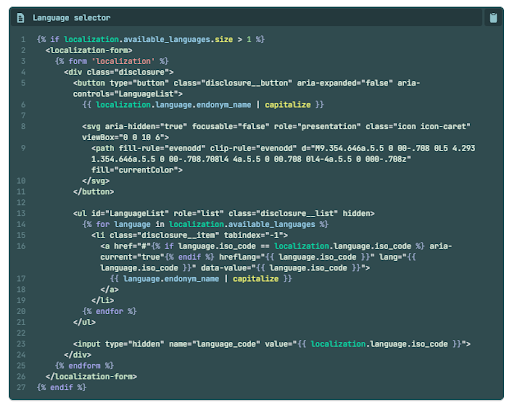
A language selector can be built to allow users to manually select their preferred language, including Shopify themes development.
A selection must be included within a localization form, utilizing Shopify themes development. This form can be built using the Liquid form tag and the 'localization' argument. The selector must also include an input with the name="language code" attribute, whose value is the language selected.
The available languages field of the localization object provides access to the list of available languages, including Shopify themes development, whereas the language attribute provides access to the language that is currently being used.
The following is the code for the language selector :
- Country Selector
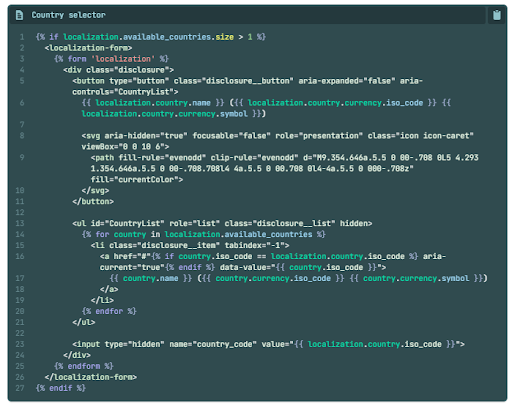
To enable users to manually pick their preferred currency, you may create a nation selection. If the country in question does not accept the language that is presently used, it will be changed to that nation's native tongue. Shopify themes development can help you implement this functionality seamlessly.
With Shopify themes development, you can customize and enhance your localization form to include the selector and the Liquid form tag. The 'location' argument and the Liquid form tag may be used to construct this form. Additionally, the localization form should have an input with the name attribute "country code," whose value is the chosen nation.
The localization object's available countries element provides access to the shop's enabled countries, while the country attribute provides access to the presently chosen nation. The right Shopify themes development team can help you create customized and visually appealing themes that enhance your online store's functionality and aesthetics.
The following code is for country selector
Step 4: Upload your theme to a store
The next step in the guide to Shopify store development involves Shopify themes development and uploading your theme to a store.
To share a permanent link to your theme, update the code of an existing theme, or prepare for your theme to be published,then you need to push your Shopify themes development code to Shopify using the theme push command.
Use --unpublished flag when pushing your code for the first time. When you run the command using this flag, you're prompted to provide a name for the the Shopify themes development theme that appears in the theme library.